Onboarding
When you first open the StocksBoard app, you will see the Onboarding page.
Here you can set your preferences, import data from your existing files, or sync with stock data stored on Dropbox or Google Drive.
All settings on this page can be changed later from the Settings page.
General
Show screenshot
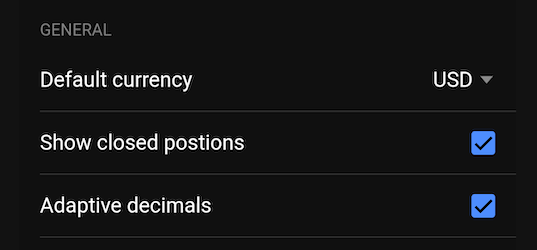
Default currency
Select your default currency.
Currently, the supported options are USD and CAD.
Show closed positions
When enabled, positions with zero (or near-zero) shares will still be displayed.
Adaptive decimals
When enabled, numbers greater than or equal to 1,000 will be shown without decimal places.
Appearance
Show screenshot
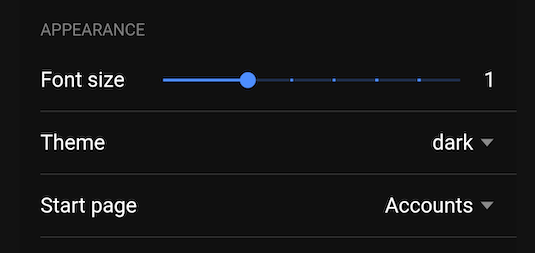
Font size
The Font size slider lets you adjust the font size for the app.
This setting is not available in the web version — only on Android and iOS.
Theme
Choose between System (default), Light, and Dark.
The System option follows your device’s theme. If your device switches between light (day) and dark (night) modes, the app will do the same.
Start page
This setting determines which page opens when the app starts.
On a fresh installation, the available options are Accounts and Assets.
Once you create watchlists or reports, you can also select one of them as the default start page.
Sample data
Show screenshot
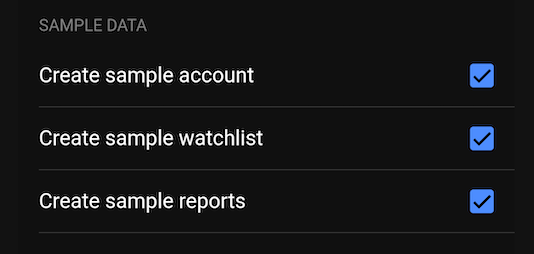
This section lets you generate sample accounts, watchlists, and reports. It’s useful for evaluating the app before importing your own data.
You can delete sample data later when ready to enter your own data.
Import / Sync
Show screenshot
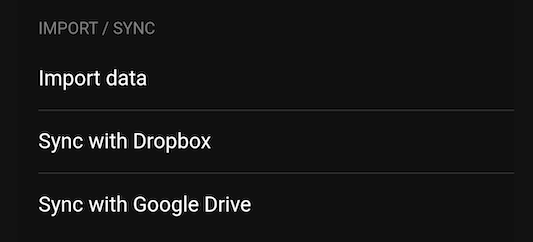
In this section you can:
- Import existing data (a StocksBoard backup or data exported from another system, e.g. a CSV file).
- Sync with data stored on Dropbox or Google Drive from another StocksBoard installation (e.g. on a different device). This keeps multiple devices in sync.